AI Artifacts Are Ruining Your Videos — Here's How to Actually Fix Them
You spent 20 minutes crafting the perfect prompt. The AI spit out a gorgeous 10-second clip. You're pumped.
Then you look closer.
There's a weird shimmer on the subject's face. The hands have six fingers for exactly three frames. The background does this unsettling wobble that makes viewers physically uncomfortable.
Welcome to 2026, where AI can generate incredible video footage — and also nightmare fuel that tanks your retention rates.
The Artifact Problem Nobody Warned You About
Here's what's happening: AI video generators have gotten scary good at creating B-roll, talking head alternatives, and even full scenes. Tools like Runway, Pika, and Sora are pumping out footage that looks genuinely cinematic.
But they're not perfect. And the imperfections are weird.
We're not talking about obvious glitches that viewers will forgive. We're talking about subtle wrongness that triggers the uncanny valley response. Viewers can't always articulate what's off, but they feel it. And they click away.
Common AI video artifacts include:
- Temporal flickering: Objects or textures that pulse or shimmer between frames
- Morphing edges: Outlines that subtly shift and warp, especially on faces and hands
- Texture swimming: Surfaces that seem to move independently from the object they're on
- Phantom details: Random elements that appear and disappear (extra fingers, floating objects)
- Motion smearing: Unnatural blur patterns during movement
One creator I follow ran an A/B test on thumbnails — same image, but one was AI-generated with minor artifacts, one was a real photo. The real photo got 23% higher click-through. The artifacts were barely visible. Didn't matter.
Why This Matters More Than You Think
YouTube's algorithm is obsessed with watch time. If viewers are clicking away because something feels "off" in your footage, that's killing your channel growth.
And here's the thing: AI-generated content is only becoming more common. Creators are using it for:
- B-roll that would cost thousands to shoot
- Visual explanations of abstract concepts
- Backgrounds and environments
- Quick social clips from longer content
If you're not using AI footage yet, you probably will be. And you need to know how to clean it up.
The Actual Fixes That Work
1. Frame Interpolation Tools
Software like Topaz Video AI and DaVinci Resolve's neural engine can smooth out temporal flickering by analyzing surrounding frames and creating cleaner transitions. This won't fix everything, but it handles about 60-70% of shimmer issues.
The key is running interpolation at a higher frame rate than your final output. Generate at 60fps, clean it up, then export at 30fps. The extra data gives the AI more to work with.
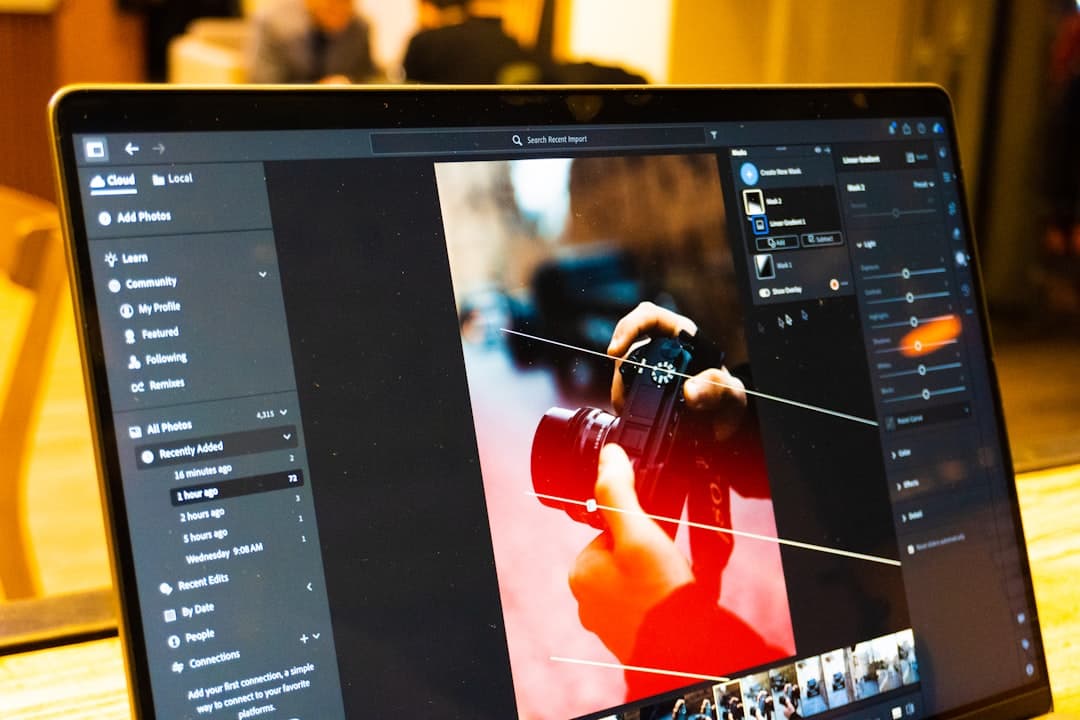
2. Selective Masking and Replacement
For phantom details (like those cursed extra fingers), sometimes the fastest fix is old-school rotoscoping. Mask the problem area, track it, and either:
- Replace it with a clean frame from elsewhere in the clip
- Use content-aware fill to remove it entirely
- Overlay a different AI-generated element that came out cleaner
Yes, this takes time. But 10 minutes of masking beats reshooting or re-generating.
3. Grain and Texture Overlays
This sounds counterintuitive, but adding film grain can actually hide AI artifacts. The organic noise pattern breaks up the synthetic smoothness that makes AI footage look fake.
A light 35mm grain overlay at 10-15% opacity does wonders. It's the same reason Instagram filters made everyone's phone photos look "professional" back in the day — they added imperfection that felt human.
4. Strategic Color Grading
Harsh, contrasty grades expose artifacts. Softer grades with lifted shadows and gentle highlights hide them.
If you're working with AI footage, consider grading it separately from your real footage. Push it slightly toward a stylized look — viewers are more forgiving of imperfections when the footage is clearly "treated."
5. Speed Ramping
Artifacts are most visible at normal playback speed. Slowing footage down to 80% or speeding it up to 120% can mask temporal issues without looking obviously manipulated.
This works especially well for B-roll where the specific timing doesn't matter.
The Bigger Picture
AI video generation is a tool, not a replacement for skill. The creators who'll win in 2026 and beyond are the ones who understand both the capabilities and the limitations.
That means knowing when AI footage will work (abstract concepts, quick social clips, background elements) and when it won't (hero shots, emotional moments, anything viewers will scrutinize).
It also means building cleanup into your workflow. Budget an extra 15-20% of your editing time for artifact removal when working with AI footage. It's not optional if you want professional results.
The technology will keep improving. But right now, the gap between "AI-generated" and "broadcast quality" still requires human intervention to close.
Get good at closing that gap, and you've got a real competitive advantage.
deum removes filler words, ums, and silences from your videos automatically — 97% accuracy, processes in real-time. Try it free at deum.video